Showing posts with label XP Tweaks. Show all posts

Saturday, June 20, 2009

How to Share Internet Between Computers

Now every one have Fast DSL connections at home and some of you have more than one computer at home. Many of us Fight who will use DSL and they don't know how to share a single DSL connection on many computers =)

Ok now today we will learn how to Share internet between two computers

First you have to make a network connection between 2 computers.

See this tutorial for more information: How to connect two computers via LAN


OK now you have to buy a LAN card from Computer accessories shop and attach it into server computer. (its recommended to make your PC a server in case other computer is a laptop).

Now you need an extra LAN cable and connect both computers.

Server Side:
Click on LAN card connected to DSL connection and select Properties.

Select Sharing Tab and CHECK "Allow other Network users to connect through this computer's Internet Connection".


Now on client Side.


For XP:
Start -> Control Panel -> Network Connections -> Local Area Networks -> Right Click -> Properties -> Select Internet Protocol (TCP/IP) and then click Properties -> Select Obtain an IP address Automatically and press Ok.


For Vista:
Start -> Control Panel -> Network and Sharing center -> Right Click on Local Area Network and select Properties. Rest of process is same as for XP

Enjoy Internet Sharing =))

Change location of pagefile.sys

As pagefile.sys some times have big memory becouse of that our C drive free space becomes very low and we got lots of problem while installing a new software so the only option we get is change the size of pagefile.sys or location but how here is its answer:

Right click on Computer and click properties the following window will open

At the uper left there is a 4th option "Advanced system settings" click this option following window will open:
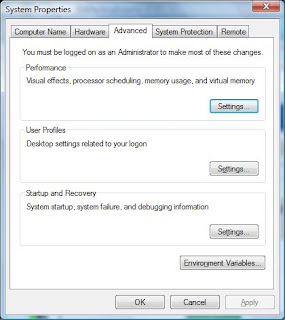

In the area of Performance click the button "Settings" and go to "Advanced" tab of that new open window:


Cick "Change" button:


As my pagefile is in E drive and on system managed size. Here u can chose a drive and clicking on custom size you can give your own size. System managed size will give size according to need and by clicking no paging you can delete the pagefile.sys from the selected drive. After doing the settings click the "Set" button and then click ok ok and then restart you PC after restart your pagefile.sys settings will change.

Thanx for visiting

Have a nice day

Helpopedia Team

How to Connect Two Computers via LAN


You have two computers and you want to connect both of them for hard disk sharing or internet sharing than follow below instructions:

  • First you need a LAN Cable.
  • Plug Connectors in Both Computers.
if you have a PC and a Laptop then first we will make settings for a PC.
To connect these two computers you have to make network connection. In a network connection you have to make one of them a server and other a Client. Lets we make XP a server.


Start -> Control Panel -> Network Connections -> Local Area Networks -> Right Click -> Properties -> Select Internet Protocol (TCP/IP) and then click Properties -> Select Use the Following IP address->


For Server Enter Following Addresses:

IP Address : 192.168.0.1

Subnet Mask : 255.255.255.0

Default Gateway : 192.168.0.1


If your Client (Laptop) also have XP in it then follow same above instructions and use

IP Address : 192.168.0.2

Subnet Mask : 255.255.255.0

Default Gateway : 192.168.0.1

If You want to make Vista Server or Client:

Start->Control Panel->Network and Sharing center


Right Click on Local Area Network and select Properties. Rest of process is same as of XP

Enjoy Sharing =))

Relevant Links:
how to share Hard Drives


Sharing the hard disk on Windows

If You have two computers at home or a PC and a Laptop. and you want to share hard disk of one computer on other in vista then follow below instructions after connecting both computers via LAN =)

For Vista:
  • Open My computer
  • Right click on partition you want share like D: and then choose to share.
  • In the new window click the Security tab.
  • Click on the Edit button.
  • Click the Add button.
  • Type "guest" (without quotes) where the cursor blinks.
  • Validate by clicking on the OK button.
  • If you need to write on this disk from the network, check the "modification" in the authorizations.
  • Then confirm by clicking OK.
  • Please wait while Windows changed all authorizations.
  • Click the Sharing tab.
  • Click the Advanced Sharing button.
  • In the new window, check Share this folder.
  • Click on the Permissions button.
  • Type "guest" (without quotes) where the cursor blinks.
  • Validate by clicking on OK and OK again.
  • If you need to write on this disk from the network, check the change in permits.
  • Then confirm by clicking OK.
  • Please wait while Windows changed all authorizations (several minutes if you share a lot of files).
For XP:

  • Open My computer
  • Right click on partition you want share like D: and then choose to Properties.
  • Select Sharing Tab


  • Select "if you understand the....."

  • Perform above step and Click Ok.
p.s. if you have to take lot of movies from your friend than please Don't use USB because its really slow. Just take a lan cable create a connection, Share drives and Share wateva you want at 100 MB/sec =)

Friday, June 19, 2009

Have a check on internet Speed(only for LAN connection)

This is very important thing while using internet (DSL) you need to know if the provider of your dsl are giving you the speed you are paying for. For that the best software is NetMeter. Download Link for this software:


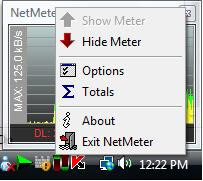
Now what about settings the NetMeter will appear you can chang the location by draging it
There is a new icon near to clock in task bar right click it


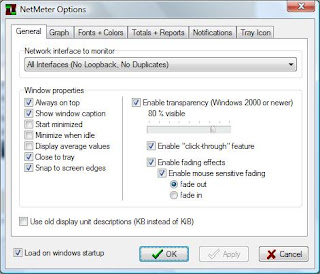
click option Following window will open


So i use 80 visible and fade out if the mouse come over it so that i can se the thinks behind it and can click through ti becouse its alway on top as i have selected it. You can do you setting as u want check that option use old display unit so that it will calculate in KB.

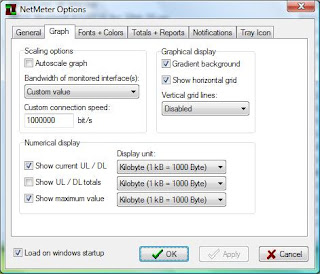
Now go to next tab that is graph tab you get the following window:

if you check autoscale graph it will change according to the maximum speed you get. As you know the speed of your dsl so we select it by Bandwidth. if you dont able to find it as there is no option for 1MBps speed so you have to give 1000000 for 1MB. Select the Kilobyte(1kB = 1000Byte) in all display unit
These where the necessary Settings for NetMeter you can edit the settings in other tabs but they are not necessary.
Thanx for Visting
Have a nice day
Helpopedia Team

Decrease Start up time of Your Computer

How to Decrease Start up time of Your Computer
(Both for Vista & XP)

1. Click at Start.

2. Select Run and type “msconfig”.


3-Click on Startup.


4- Uncheck all extra process which you don’t need for example adobe acrobat, PC suit (if u dun use it daily), Power DVD, Windows Defender (if you have an antivirus installed) or any other application you don’t need at startup.

5- Click Apply button.


6- Computer will prompt you to Restart or not. It’s not mandatory to restart your PC.

p.s. You will surely find better Performance after this simple process.